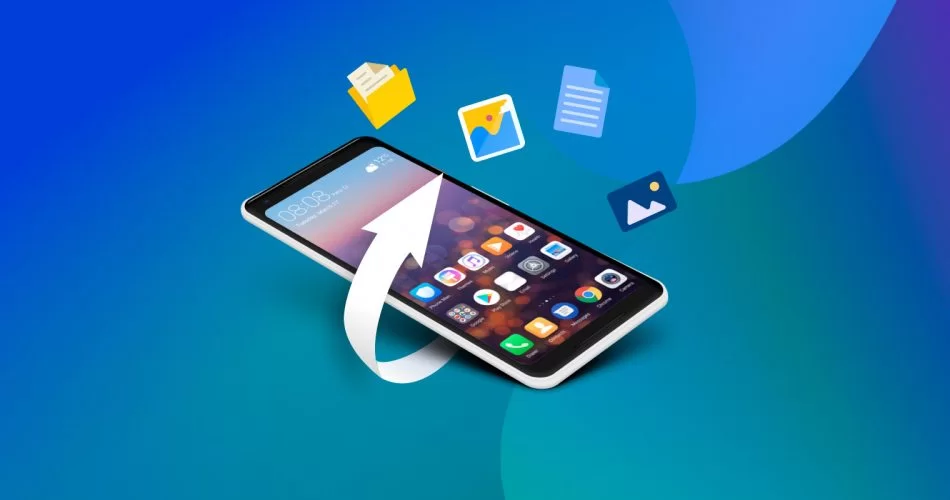
In today’s digital age, our smartphones hold a treasure trove of data—photos, videos, documents, messages, and more. Unfortunately, accidents happen. You might delete a file unintentionally, and before you know it, it’s gone. Even worse, what if the file is permanently deleted? The good news is, there are still ways to restore permanently deleted files on Android devices, even when it feels like all hope is lost.

In this article, we’ll walk you through practical methods and tools to restore permanently deleted files from your Android phone. Whether it’s due to accidental deletion, system crash, or malicious software, we’ve got you covered.
Can You Really Restore Permanently Deleted Files on Android?
Let’s get this straight first: when you delete a file on Android, it’s not always completely erased from your device. In many cases, the system simply marks that space as available, meaning the data remains there until it’s overwritten. That means there’s often a window of opportunity to restore permanently deleted files before they are gone for good.
Common Scenarios Where Files Get Permanently Deleted
Understanding how files can be permanently deleted helps you act quickly and appropriately. Some common causes include:
-
Emptying the Trash/Recycle Bin
-
Deleting files from internal storage without backups
-
Performing a factory reset
-
Corruption due to malware or failed updates
-
Removing files using third-party apps
Regardless of how the data was lost, there are still ways to restore permanently deleted files if you act fast.
Method 1: Use Google Drive Backup
If you had Google Drive backup enabled before deletion, your files may still be retrievable.
Steps:
-
Open Google Drive on your Android.
-
Tap on the Menu (three horizontal lines).
-
Select Trash to see if your file is there.
-
If not in Trash, try searching the name of the file in Drive.
-
Download the file or restore it to your device.
This only works if you had backup/sync turned on prior to the deletion. Google Drive can be a lifesaver and the easiest way to restore permanently deleted files—without any technical skills needed.
Method 2: Check Your File Manager’s Recycle Bin
Many Android phones, especially those from Samsung, Xiaomi, or Huawei, come with a built-in Recycle Bin in their file manager or gallery apps.
Steps:
-
Open the File Manager or Gallery.
-
Tap Trash or Recently Deleted.
-
Select the files and restore them.
If the deleted files aren’t older than 30 days, this feature can help you restore permanently deleted files easily.
Method 3: Use a Data Recovery App (Without Root)
There are powerful apps available on the Play Store that can help restore permanently deleted files without requiring root access.
Top Recommended Apps:
-
Dumpster: Acts as a recycle bin for Android.
-
DiskDigger: Effective for recovering lost photos and videos.
-
Dr.Fone – Data Recovery: Offers recovery for various file types.
Steps:
-
Download and install the recovery app.
-
Grant necessary permissions.
-
Perform a scan to locate deleted files.
-
Preview and recover the desired files.
Please note: The sooner you perform the scan after deletion, the higher the chance of success.
Method 4: Use a PC-Based Recovery Tool
If mobile recovery doesn’t work, try using a computer with specialized software.
Recommended Tools:
-
Tenorshare UltData for Android
-
iMobie PhoneRescue
-
EaseUS MobiSaver for Android
Steps:
-
Connect your Android device to your PC via USB.
-
Enable USB debugging.
-
Launch the recovery software and start scanning.
-
Preview the recoverable files.
-
Choose the files you want to restore and save them to your PC.
These tools are incredibly powerful and offer a higher success rate when trying to restore permanently deleted files from internal memory or SD card.
Method 5: Contact Professional Data Recovery Services
If your files are extremely valuable and none of the above methods work, it might be time to call in the pros.
Professional data recovery services can often restore permanently deleted files even from severely damaged or corrupted Android devices. However, this method is usually more expensive and time-consuming.
Best Practices to Avoid Permanent File Loss
Prevention is always better than cure. Here are some simple ways to protect your data:
-
Enable Google Photos or Drive Backup regularly.
-
Use apps like Dropbox or OneDrive for automatic cloud storage.
-
Keep your device malware-free with a trusted antivirus.
-
Regularly back up your device to a PC or external storage.
-
Use a reliable file manager that supports trash or recycle bin features.
Following these practices will reduce the chances of needing to restore deleted files in the future.
Final Thoughts
Losing important data can be stressful, but don’t panic. There are several reliable ways to restore deleted files on Android devices—even if they seem lost forever. From built-in backup options and third-party apps to professional recovery software, your files may still be within reach.
The key is to act quickly and avoid using your device excessively after data loss to prevent overwriting deleted data. With the right tools and a bit of patience, it’s entirely possible to restore deleted files and breathe a sigh of relief. Read more